Sure, Gimp can handle this one easily.
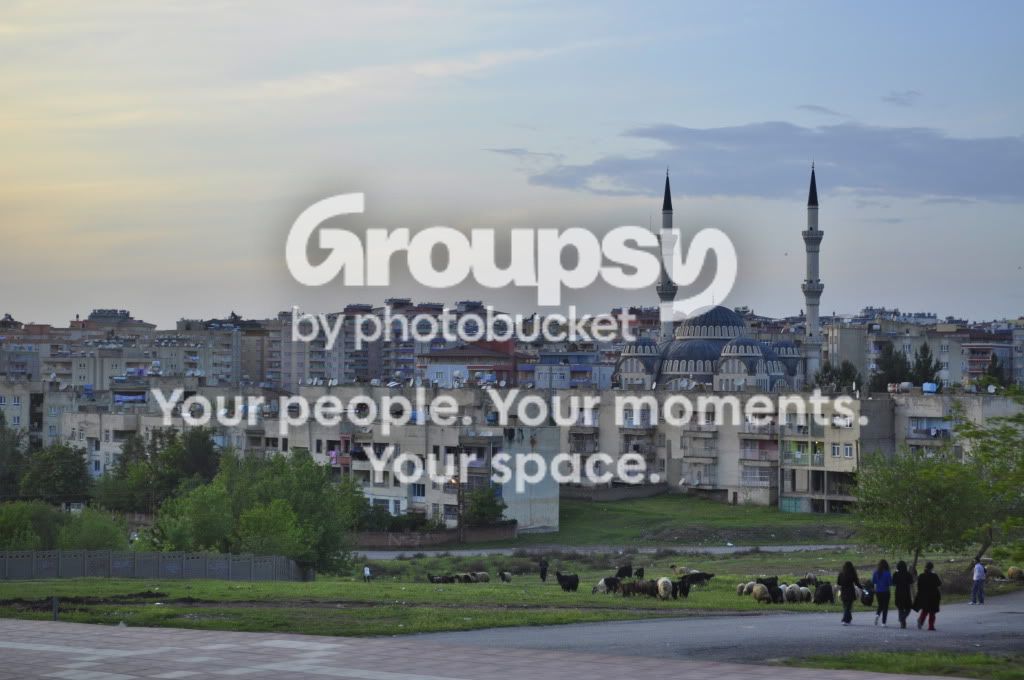
Open the photo in GIMP. Go to the Colors menu and get Levels. In the Levels dialog find the three eyedroppers -- pick the middle one (grey point). The mosque has domes -- NOT the top dome, but the larger lower dome; it seems to have bands of slightly lighter and darker tone. Click the eyedropper on the darker tone of that dome. You're setting a grey point. I tried a couple different places in the photo that looked like they might be grey. I was pretty happy with the dome. I believe the real dome is actually a little blue and by using that to set a grey point you're shifting the color warm. In the case of this photo and the low sun I think that warm tint works. I actually went back and then pulled a little orange back out. This goes a long way to correcting the white balance error.
Keep the Levels dialog open and go up to the histogram. It fails to reach either end (tone is compressed). Drag the black triangle slider on the left end over to the graph (value in the box should be 30). Drag the white slider over to meet the graph (value in the box should be 222). This will go a long way toward correcting the tone error. The photo will appear too dark now. That's OK -- click the OK button.
From the Windows menu, Dockable Dialogs select Layers. Right click on the background layer and select Duplicate Layer. Now from the Mode box above select Screen. Lower the opacity till the foreground looks good (around 75%). The sky is gone -- don't worry.
Go to the toolbar and get the Fuzzy Select tool. Click on the sky in the upper left corner. Now hold down the Shift key and keep clicking on different parts of the sky until you have the whole sky selected. From the Select menu pick Invert. You really wanted to select the foreground, but it was easier to get there by selecting the sky and flipping the selection.
Almost there: Back to the Layers palette. Right click on the background copy layer and from the menu pick Add Layer Mask. Click the radio button next to Selection and click OK. Sky is back. Form the Select menu pick None. From the Image menu pick Flatten Image and then fine tune as needed (maybe not so warm); Colors -- Color Balance can fix that.
Joe




![[No title]](/data/xfmg/thumbnail/42/42230-fa8ace50a80342c7d91db1431f911bab.jpg?1734176608)

![[No title]](/data/xfmg/thumbnail/32/32936-e1ef9b5cfbe2ae3e2dbd817af60d390d.jpg?1734162736)
![[No title]](/data/xfmg/thumbnail/42/42059-61b97bbebb00e6276672551f4e3b3e43.jpg?1734176455)
![[No title]](/data/xfmg/thumbnail/32/32939-0b23ff8a791c06732705126fb26845ea.jpg?1734162753)