What's new

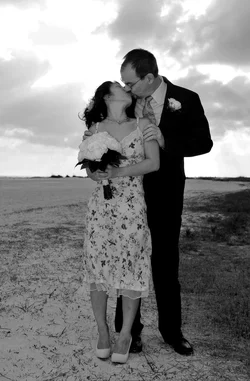
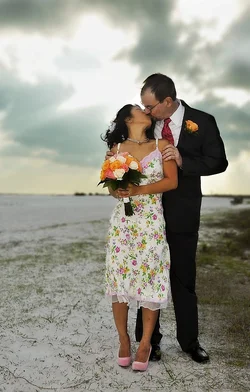
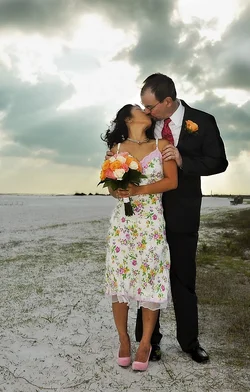
A few shots from my friend's wedding. (could use some help editing)

Mirage_Man

TPF Noob!
Joined
Jul 22, 2009
Messages
27
Reaction score
0
Location
Florida
Can others edit my Photos
Photos OK to edit
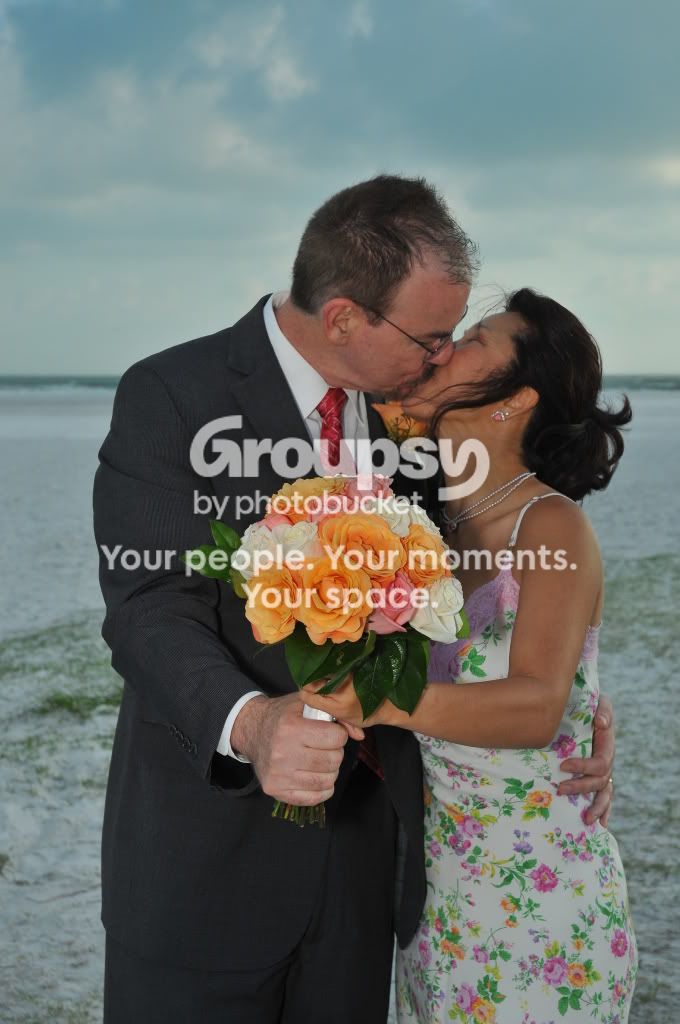
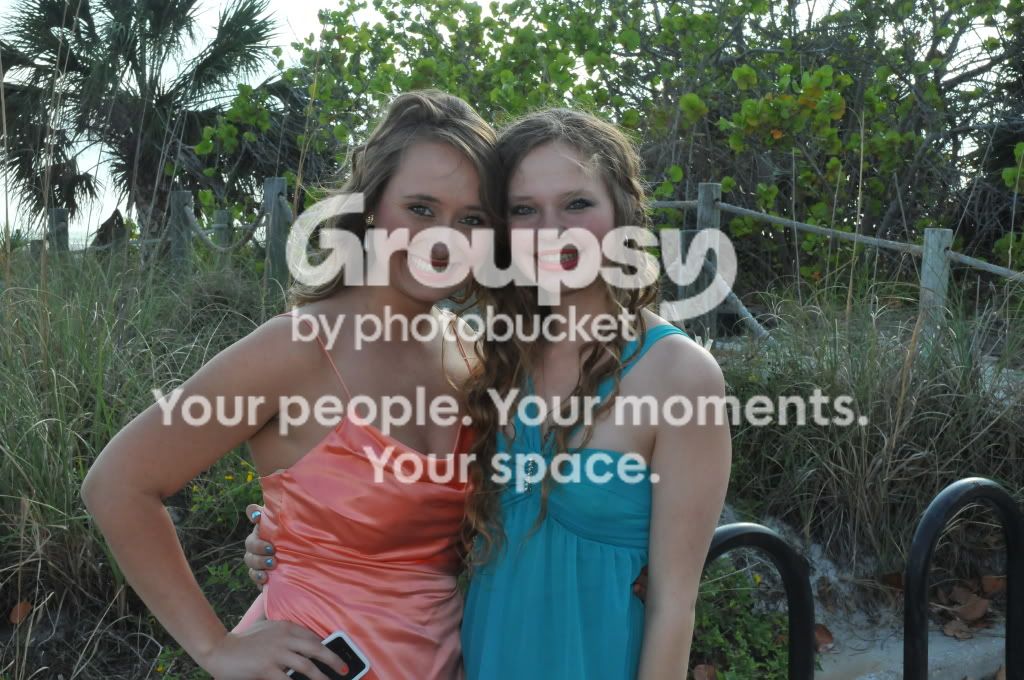
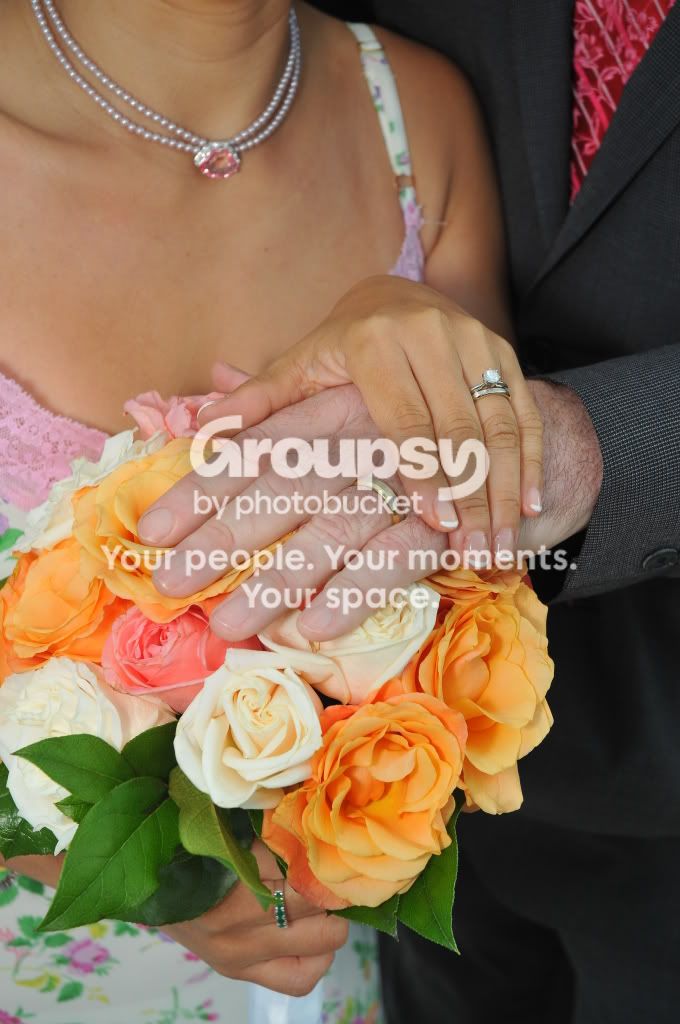
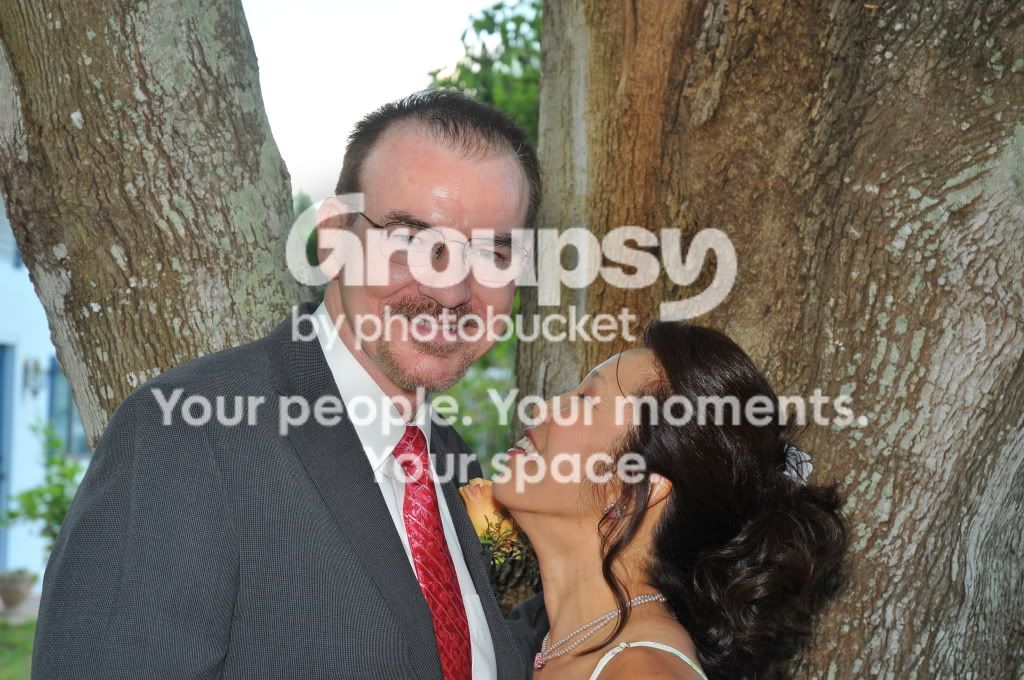
So a long time friend asked me to photograph his very low profile wedding. I am by no means a pro and just beginning to scratch the surface of how to use my camera. That said even though the weather was horrible and bordering gale force winds...on the beach! I managed to get a few decent shots. Problem is I have a pretty crappy monitor and although I have PS CS4 I don't have a clue what I'm doing with it to edit the photos. I did shoot the wedding in both RAW and L JPEG. Anyway, here are a few I grabbed and uploaded to PB at a much lower res. If anyone has any tips on how to make them better and perhaps ones that would be worthy of blowing up to 8"x10" or larger I'd be happy for the help. Thanks!
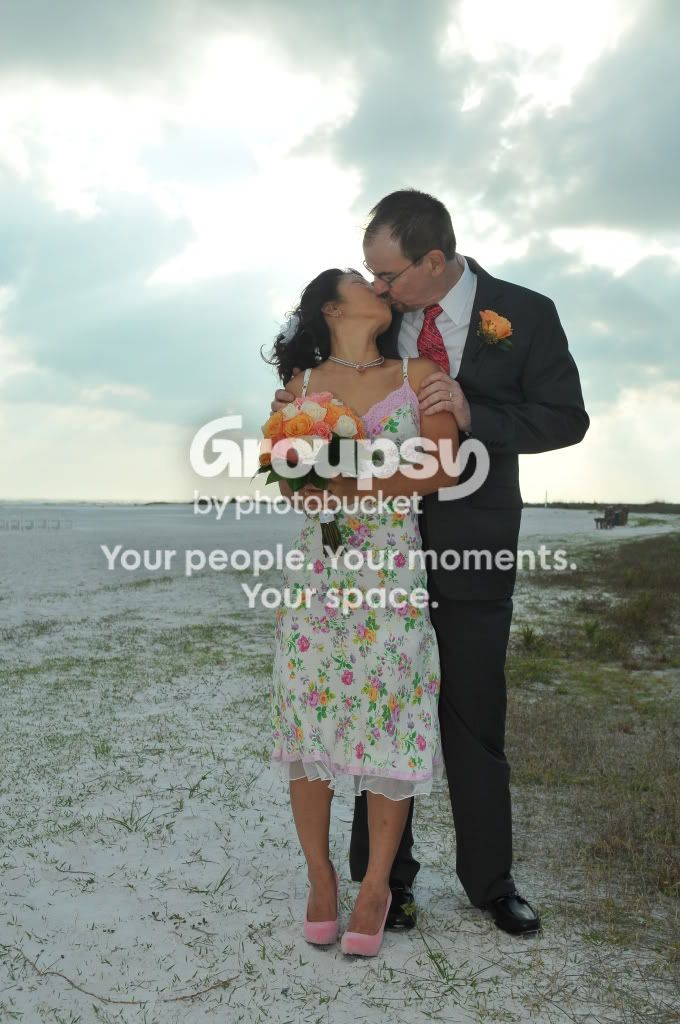
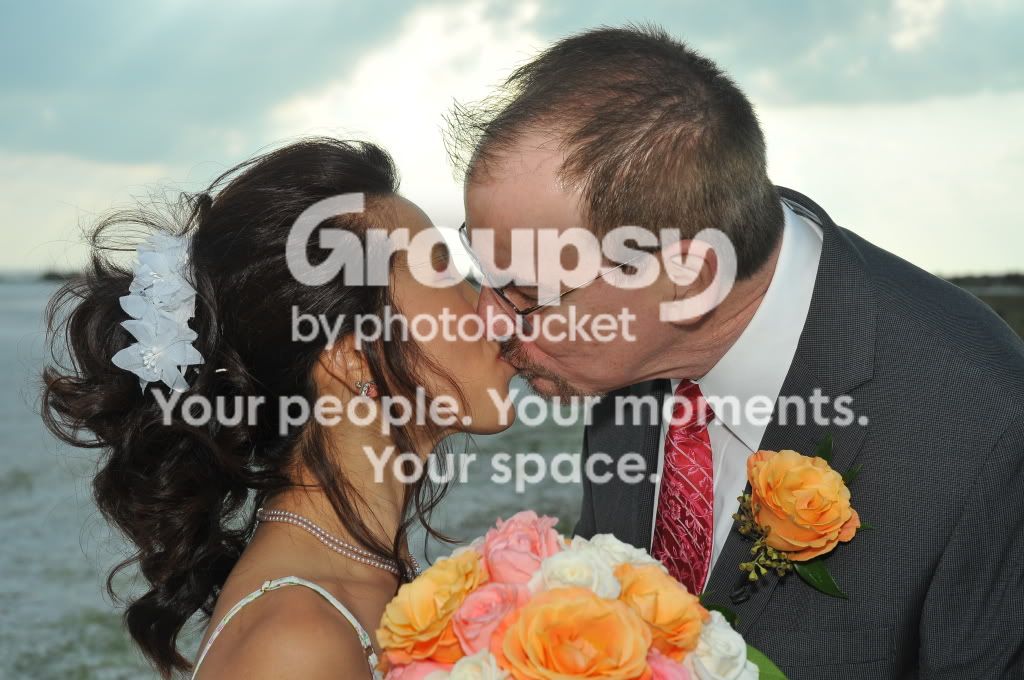
DSC_2302.jpg


DSC_2307.jpg


DSC_2338.jpg


DSC_2141.jpg


DSC_2333.jpg


DSC_2347.jpg
 
Last edited:
I am far from experienced here but the first one looks a bit washed out but has a moody sky. I think it may look better in b+w. This is a very quick edit with the bench on the beach cropped out. Your title says photos ok to edit. You could do a way better job than this if you took time$DSC_2302.webp
 
something like this??? Foregrounds are underexposed... sky is blown. Kind of hard to fix without doing total replacements, and global brightness adjustments...

View attachment 7093
 
something like this??? Foregrounds are underexposed... sky is blown. Kind of hard to fix without doing total replacements, and global brightness adjustments...

View attachment 7093


Sorry, but this appears to be way overprocessed.

I think the WB and contrast needs some work.
 
something like this??? Foregrounds are underexposed... sky is blown. Kind of hard to fix without doing total replacements, and global brightness adjustments...


Sorry, but this appears to be way overprocessed.

I think the WB and contrast needs some work.

DUH! Considering the image I was working with... and the fact I spent maybe two minutes on it, I wonder why! lol!
 
So that picture is probably the worst technically (exposure etc) out of the bunch right:( ? What about the others? It was difficult to fight the sun and constantly changing light due to the wind/cloud movement.
 
Last edited:
So that picture is probably the worst technically (exposure etc) out of the bunch right:( ? What about the others? It was difficult to fight the sun and constantly changing light due to the wind/cloud movement.

Probably. just render them black and white. Thats what I would do at least.
 
agreed, the black and white makes the pic look a little better
 
So you guys are saying none of the ones I posted have correct exposure?? and need to be B&W??
 
How about this?
Added two versions, one is a bit more playing in Photoshop for fun. ^^

EDIT - Hmm... Seems I got a few small halos here and there... Oh well, you get the idea. :P
 

Attachments

  • $DSC_2302_edit_lensblur.webp
    $DSC_2302_edit_lensblur.webp
    138.7 KB · Views: 155
  • $DSC_2302_edit.webp
    $DSC_2302_edit.webp
    176 KB · Views: 143
How about this?
Added two versions, one is a bit more playing in Photoshop for fun. ^^

EDIT - Hmm... Seems I got a few small halos here and there... Oh well, you get the idea. :P

That's awesome! How do you do that? I wish I knew how to use PS :).
 
It's not too complicated, just requires a bit of practice. :)

Basically what I did is open the image in Adobe Camera Raw (comes with Photoshop) and did some general edits (white balance, exposure, saturation, stuff like that) so the overall looked decent.
In this case I basically made sure the exposure was best on the ground.
After this I grabbed the adjustment brush (one of the tools in ACR) which allowed me to edit the exposure on specific parts of the image.
I increased the exposure on the couple and decreased it on the sky.
This brushing takes time, especially if you want a perfect job. Technically it's not very hard though.
After this was done I got a very decent image which I opened in Photoshop itself for some extra processing.

The extra processing was less important but still nice.
I'm not going to explain in detail how I created the extra blur on that first image (it's something to do with the Lens Blur filter and layer masks).
What I did lastly on both images though was create a new layer and apply the complete image on it (Image > Apply Image) and Gaussian Blur it (I used a blur of 5px here).
I put the blending mode on that layer on Soft Light and reduced opacity to 50%. This gave the image a somewhat dreamy feel.
Then I applied the image on a new layer again and used an Unsharp Mask (Filter > Sharpen > Unsharp Mask) to sharpen the image.
Yes, I oversharpened it, I just noticed that... Sue me. xD
 

Create an account or login to comment

You must be a member in order to leave a comment

Create account

Create an account on our community. It's easy!

Log in

Already have an account? Log in here.

New Topics

Back
Top Bottom