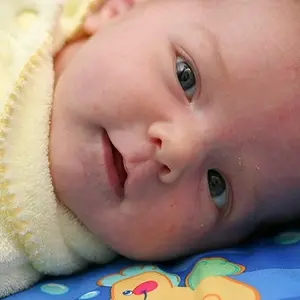
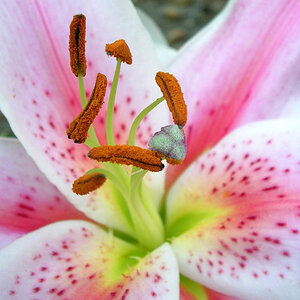
I'm gonna differ here, and say I see some very good potential.
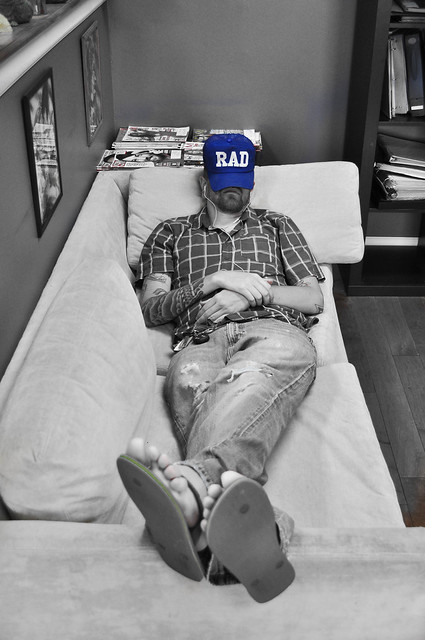
1. While I'm not a fan of selective color either, I like the composition of the photo. I don't know why exactly, because it's pretty straight forward, but I like it.
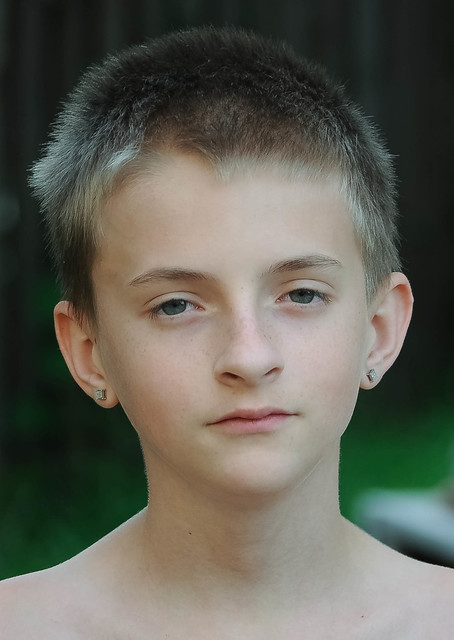
2. Yes, the boy looks bored and it's slightly green and a bit underexposed, but it's clear and sharp and has some really good bokah here.
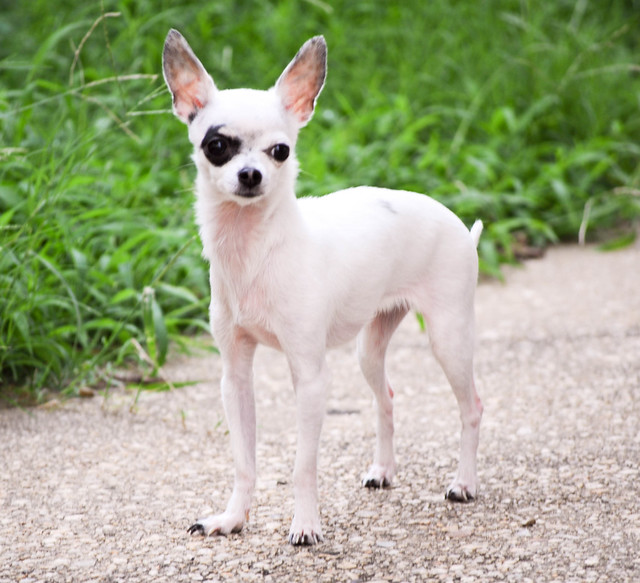
3. The third one is not as sharp as the other two, but again the comp and colors are good. It's slightly overexposed, but ever so slightly. You might use layers on this one to expose the dog and the gravel without changing the rest of the photo.
Here's how:
a. Open the photo in Photoshop.
b. Open your layer's palet.
c. Make a dupe image (control J on a PC)
d. Hit the buttom at the bottom of the layers palet that looks like a yin/yang sign or a black and white cookie. This will open up your udjustment layers. Choose Curves.
e. Go to the center of the curves line, select it, and drag it DOWN. (If you want to bring the expose up on something, you will do just the opposite.) Look ONLY at the part of the image that you want to lighten or darken, until it looks right.
f. Press CTR and Delete at the same time. The photo will go back to exactly as it was before you did the curves layer.
Now you have this layer called "curves" in your layers box. There will be a little box next to the thing that says "curves". The box might be white or it might be black. If it's black, choose a white paintbrush (If it's white, choose a black paitbrush) and simply paint in your exposure.
Hope that helps!



![[No title]](/data/xfmg/thumbnail/30/30866-bdfc426e8ee7e6ad63f6d751c5f288f0.jpg?1734158835)
![[No title]](/data/xfmg/thumbnail/30/30869-817b4d4e7585860fab4b08558512787a.jpg?1734158847)