You always apply the mask to the layer above the other, because you use the mask to choose what part of the top layer you want to be transparent and what part you want to keep.
(
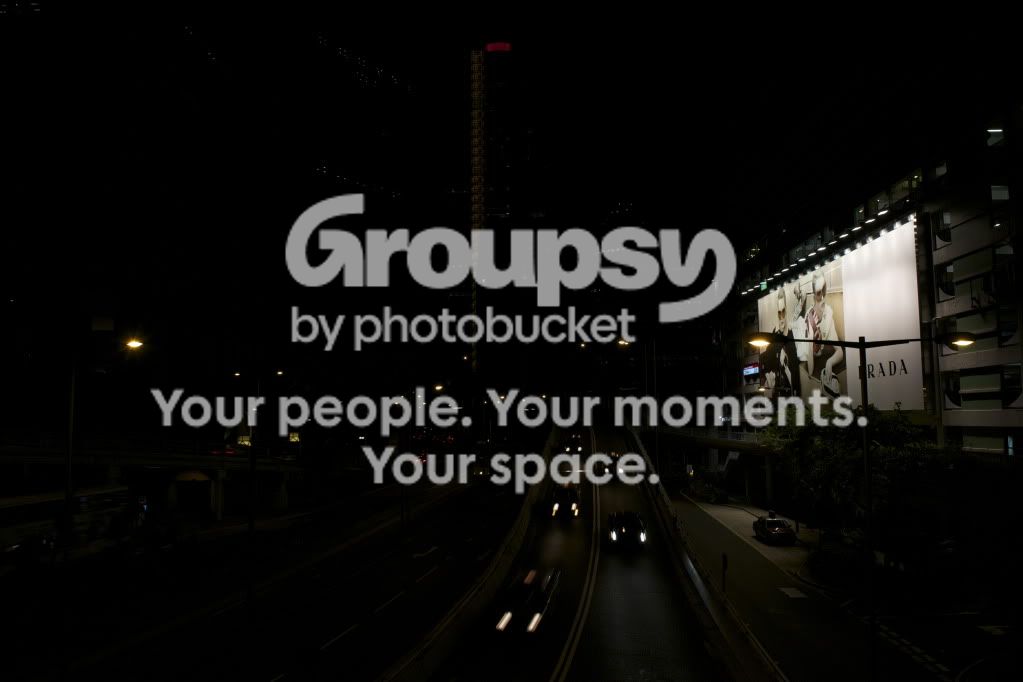
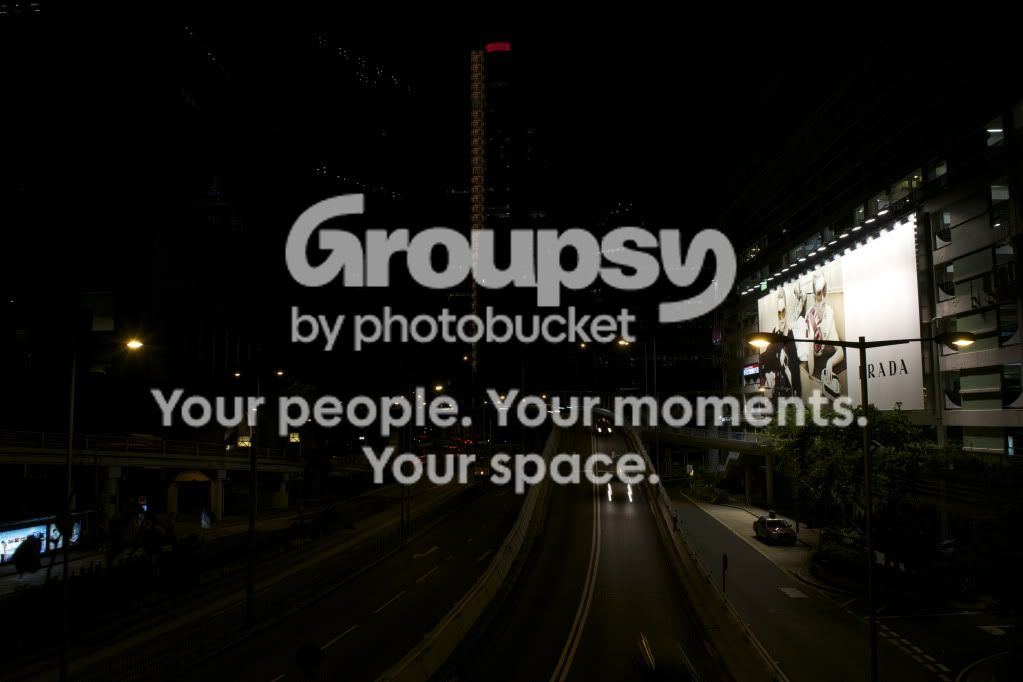
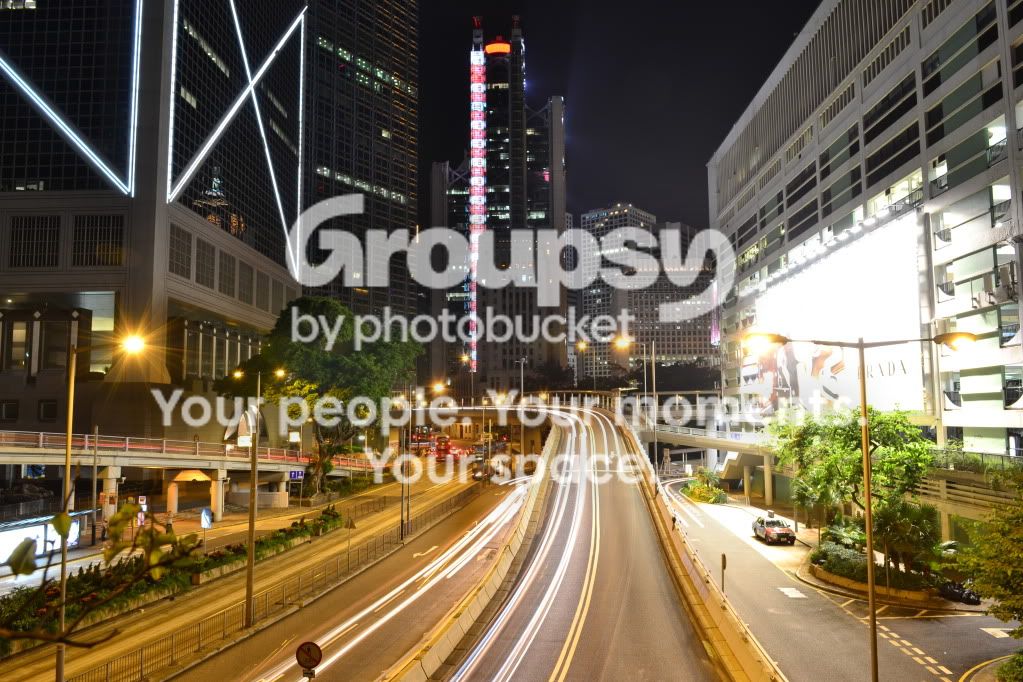
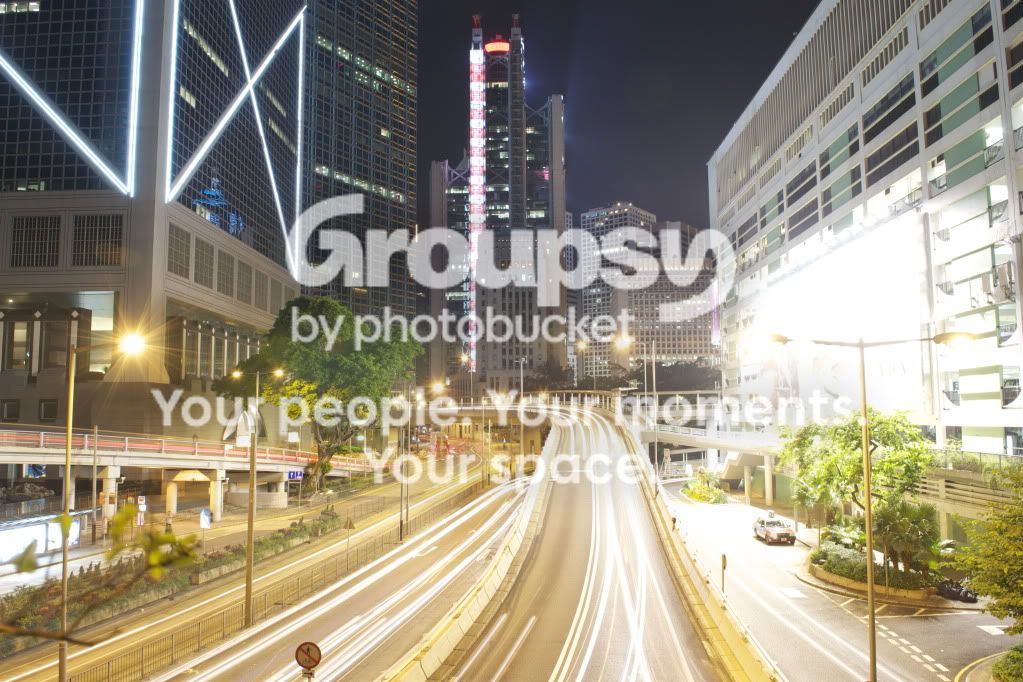
1) You start by putting the pictures you want to work with as layers in one PS canvas, e.g. one close to "correct exposed" file and one file to add details to washed out areas.
(
2) Then it is time to apply the mask. Next to the icons under your layers (new layer, the trash can etc), you have an icon that is called "add vector mask" (a square with a circle in it). If you hit this icon you will get a white frame next to your layer.
(
3) In this frame you paint with your paintbrush in either black or white - or shades of grey. This will allow you to choose what in the layer you will be able to "see through". Black will let you see through, and shades of grey will let you see partly through the layer depending on the shade of grey you use. The nice thing about using this instead of your eraser tool, is that if you over do it or want a part of the layer back - you just paint with white, and it will come back! You never remove any part of the layers, you just tell PS that you want to see through it at chosen parts.
(
4 ) You can also set the brush to how much opacity you want (instead of playing with different shades of grey), or the flow - so that you can set how hard you want the edges of the brush.
(
5) In CS5, you can also change the feather of the applied mask after you are done. This will let you soften all the edges a bit.
^-> and no! That is not how it looks like when I use Photoshop. Just had to
reduce the windows size a bit, so that we can see everything in this picture.
It was either that or using a much larger picture

Hope this got you in the right direction

Just let me know if you have any more questions!
Edit #2: And to your question: A writing pad with a pen would let you be more in control of how you apply your mask, at least if you are experienced in using it. Mouse work in some cases, and much better than a lousy touch pad! ^^ You can also use selections to set outer boarders for where you want the mask. E.g. in the picture of this thread - you could put a selection around the billboard, and that selection would keep you from applying your mask to anything outside the billboard. But as you keep practicing, I am sure you will be in enough control of masking to use it effectively in your editing.



![[No title]](/data/xfmg/thumbnail/42/42278-22ed940cbdc5888a28d9be36006594dc.jpg?1734176689)
![[No title]](/data/xfmg/thumbnail/31/31015-dc3b950337aa798fec947c782fff2e35.jpg?1734159097)

![[No title]](/data/xfmg/thumbnail/42/42276-99df5da06c3e5dc83ae4bab11e935910.jpg?1734176684)
![[No title]](/data/xfmg/thumbnail/31/31018-a537939c7ad9fc1126461101c651a8a0.jpg?1734159105)