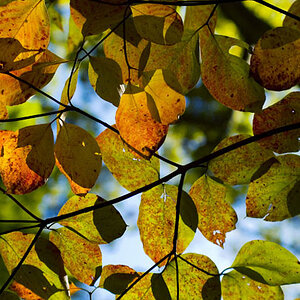
The color was so much better on my computer before i uploaded it.
This can happen when you upload an image and it is either too large dimension wise or saved so the file size is too large, then the server has to quickly resize and resave the image, some better than others, but all usually lose detail and alter colors.
If you are using photoshop, try the save as web feature under file, and select the jpeg/ and high /very high, and at 100% on high there isnt any visible differance at 100%, little at 200% zoom. For your picture the filesize is 70k on high and 107k on very high. Hope this makes sense.
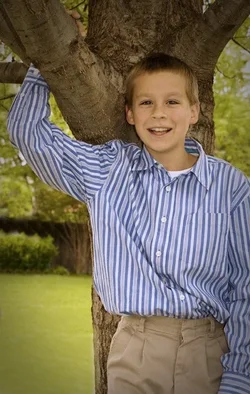
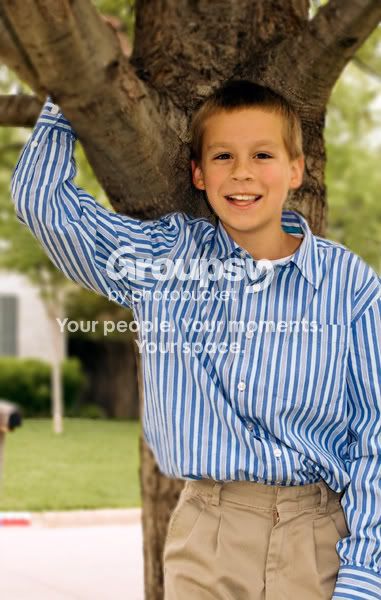
Cropped
Uncropped
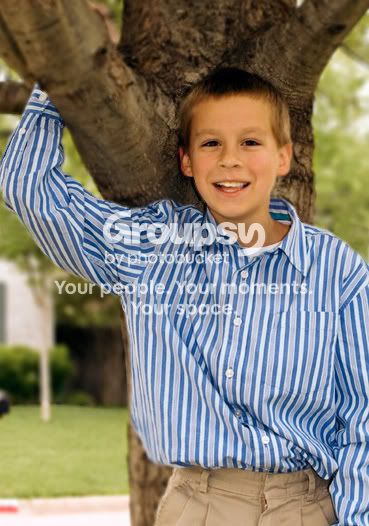
Original
If you try the blur the backround out, your going to want to make seperate selections of the tree, your son, and the backround behind the tree, preferably using a mask for each so it can be reworked at any time. I also made a mask for the lawn seperatly (more on that in a sec.) Then made a radial gradiant in the tree's mask channel so that when I blur it, the center of the tree around his head is in focus and the further away from his head it gets out of focus. Next I opend up the lens blur dialog ( if you have an older version gausian blur works also) and then blured the tree mask first, then the grass with a bit more blur, then the rest with even more blur. The further away the more blur. I didnt really get fussy with it so its not the greatest, might be a touch too much but its 3am lol.
Also before I did the blur I did some color corrections, there was a green cast over the whole image (you can use the eye dropper tool to get an RGB value readout on the white collar) and I desaturated the grass and backround greens a bit so they whern't distracting, though after I was all done I realized it may have been a bit too much (looks like ohio grass now

) And im not working on my calibrated moniter, just my macbook, its overdue for a calibration so it might be a bit off.
this might help you with the clone tool, also remember that to get a good clone you almost always need to clone it with the stamp tool then use the healing brush to drag over it and fix it up, use a soft brush with the clone and a hard brush for the healing tool.
http://www.lonestardigital.com/rubber_stamp.htm
http://www.digitalretouch.org/download/healing/healing.pdf
Good job on the pic and let me know if you need any post editing help,
Adam