Fix the distortion - the not vertical line on the extreme right.
Here's how to do it with Elements.
Drag out a crop box the same size as the original image. Hover the cursor near the upper right corner and it wll become a curved double arrow. Rotate the crop to the left till the edge is parallel to the line in the image. OK the crop. Crop away the white leftover bits. I'd make it closer to a square crop
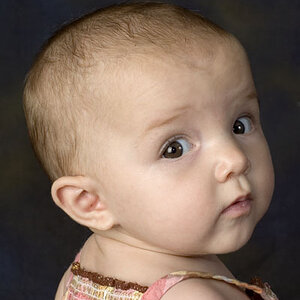
Clone out the black hardware, particularly the piece that looks like it is about to enter her skull.
For the clone of her stray hair you should use the left hand door for your clone source. You don't allow editing images so I can't show you exactly where to source your clone. As VTF mentions the line in the door on the opposite side of her head doesn't match making the edit very noticable.
She has a slight double chin. Carefully dodge the underside of her chin to minimize the shadows it causes, since Elements doesn't have the Liquify tool.
While your at it, zoom way in and dodge the whites of her eye's too.
The dodge tool is a part of the bottom tool icon (Sponge, Dodge, Burn).
To dodge or burn: Click on Layer>New>Layer. When the dialog box opens change the "Mode" to Soft Light and put a check mark in the box under that, that now says "Fill with Soft-light-neutral color (50% grey). I usually make a dodge llayer and a separate burn layer if I'm going to do both.
In the tool options bar select a soft edge brush. The brush mode should already be set to "Desaturate". That's what you want it to be. You can use the open bracket and close bracket keys to change the size of the brush.