What's new

Struggling with skin tones!!!

Emilymarie

TPF Noob!
Joined
Jun 6, 2010
Messages
182
Reaction score
0
Location
CA
Can others edit my Photos
Photos OK to edit
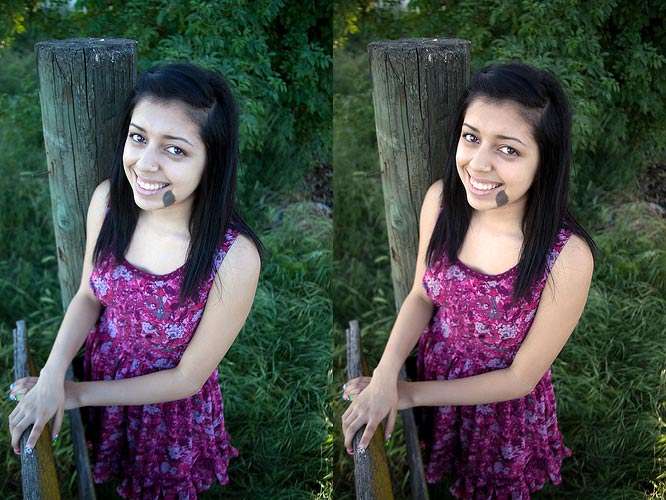
I have always had the hardest time getting even looking skin tones for every image in a session. The lightning for each image is totally different so how can I get this right? Is there some kinda of dropper in PS or PS RAW where I can sample a tone/color/exposure and apply that same to each image? But then if I did that then the tones might look to fake for whatever the lightning condition was. :madass::banghead:


I know u hate links but Im in a hurry and dont have time to add 6 more images but you can see more images from this session Emily Marie Photography: Miss A to get more of idea what im talking about.

SOOC
5646186519_c2f9fa34c7_z.jpg


SOOC
5646771346_8101e40e0f.jpg


This photographer took our pictures 2 years ago, I love all her work. All our skin tones are consistant!! UGH. How to I get that?


5646817700_78eed6b118_z.jpg


5646817026_aa140775c9.jpg


5646253499_f878cb1ffd.jpg

http://www.brookebeasleyblog.com/
 
I would recommend using the "Photo Filter" tool in PS. Just erase what doesn't look nice (the background), and they should add some nice tones to the skin.
 
Use a gray card at least. You put the gray card in the first shot each time the lighting changes. Then that first image is used to correct all the photos made in that lighting using the White Balance tool in Camera Raw, or the gray dropper in Levels. Be sure and set the white and black points too while you're at it.

For people shots I also use a ColorChecker Passport: X-Rite ColorChecker Passport

I highly recommend this book: Real World Camera Raw with Adobe Photoshop CS5
 
You have your camera set to auto white balance. "Auto" white balance doesn't work. In the second of your two photos the entire image has a blue color cast. Open shade is blue and your camera's AWB setting failed to compensate for the light color.

Are you working with camera produced JPGs or RAW files? With RAW files you can alter the WB, with camera JPGs you have to correct the error.

As a rule of thumb human skin tone has a hue value that averages in the high teens to low twenties in the sRGB color space. Open Photoshop's color picker and eyedropper the color on your subjects forehead or cheek. If you get an H value in the single digits or over 30 you probably have trouble.

Back to the camera. Your camera has the ability to set a custom WB, that will solve your problem. Get a grey card or similar white balancing aid.

Joe
 
A grey card as suggested by KmH is best but if you don't have it yet, zoom in on the white part of the eye and use this as reference when using the White Balance tool in Camera Raw.
 
I have grey card but I'm not sure how to use it in RAW when I can only have one image opened at a time. If I use it at the shoot each time the lightning changed won't I be using it several times since even walking a few feet from one lightning could be totally off??


I shoot RAW.
 
You can open more than 1 photo at a time in Camera Raw, by using the shift key.

You start with the photo that has the gray card in it. You use the Camera Raw, White Balance tool on the gray card. You can then sync that edit to all, or just some of, the other photos you have open in Camera Raw.

Get the book I recommended, and learn how to use all of the features Camera Raw has.
 
Last edited:
There is also a method you can use in Photoshop to find any neutral gray in a photo, if there is any. You can use that like a gray card. http://www.photoshopessentials.com/photo-editing/neutral-gray/

Gray just means the tonal value of each of the 3 color channels, red, green, and blue (RGB) are exactly the same and thee is no color cast.

R=200, G=200, B=200 (200, 200, 200) is a tone of gray, R=50, G=50, B=50 (50, 50, 50) is a much darker tone of gray,
 
Last edited:
Use the grey card when you shoot to set a custom white balance for the lighting condition. You can do this as often as needed and it really makes a huge difference. You're always better off getting it right up front in the camera when possible.

Joe
 
Just above the log and border of the frame is a grey spot. In Camera Raw or in CS5, click on this using the White Balance dropper. You might get a better skin tone if you use that as your grey reference point.
 
Hi Emily, believe you may have had the camera in auto and it basically picks the white balance setting for you. If you shoot like this again outdoors try the cloudy setting it may get the tones closer to where you want them. If you can, learn to do a custom white balance with your camera or have a target with you that the subject can hold so you can use it as a reference photo/target to get the skin tones right on. Another note if you shoot RAW when you open the file in the RAW converter it gives you the option to choose the WB. Just pick Daylight/ Flash etc. and tweek to your liking to keep all of the skin tones consistant. You will also notice the Kelvin rating near the sliders 5400K etc. you can vary this # to get you close. Open the images again in the RAW processor and change the WB settings. Not sure what you are using but some of the programs apply the changes to several images at once to lessen the work load. Hopefully that did not confuse you too much.
-
Shoot well, Joe
 

Create an account or login to comment

You must be a member in order to leave a comment

Create account

Create an account on our community. It's easy!

Log in

Already have an account? Log in here.

New Topics

Back
Top Bottom