What's new

A photo inside a photo...?

How do you get the picture BEHIND the fingers holding the frame? lol


Drop the picture in on a new layer....

Then Create a layer mask by either selecting the hands and then pressing the mask button at bottom of layers palette, or simply create a mask, and then with the mask selected in the layers palette, use black to paint on the hands so that they show through. ( you will still have to lower the opacity to see what you are doing. However, using the eraser is destructive to the image on that layer, while masking it is not. You can also have more control over fine tuning the mask using feathering or simply going back in and painting in white or black to add or take a way. Just zoom in really close to make sure you are getting all of the hands.
 
How do you get the picture BEHIND the fingers holding the frame? lol


Drop the picture in on a new layer....

Then Create a layer mask by either selecting the hands and then pressing the mask button at bottom of layers palette, or simply create a mask, and then with the mask selected in the layers palette, use black to paint on the hands so that they show through. ( you will still have to lower the opacity to see what you are doing. However, using the eraser is destructive to the image on that layer, while masking it is not. You can also have more control over fine tuning the mask using feathering or simply going back in and painting in white or black to add or take a way. Just zoom in really close to make sure you are getting all of the hands.

what he said
 
How do you get the picture BEHIND the fingers holding the frame? lol


Drop the picture in on a new layer....

Then Create a layer mask by either selecting the hands and then pressing the mask button at bottom of layers palette, or simply create a mask, and then with the mask selected in the layers palette, use black to paint on the hands so that they show through. ( you will still have to lower the opacity to see what you are doing. However, using the eraser is destructive to the image on that layer, while masking it is not. You can also have more control over fine tuning the mask using feathering or simply going back in and painting in white or black to add or take a way. Just zoom in really close to make sure you are getting all of the hands.
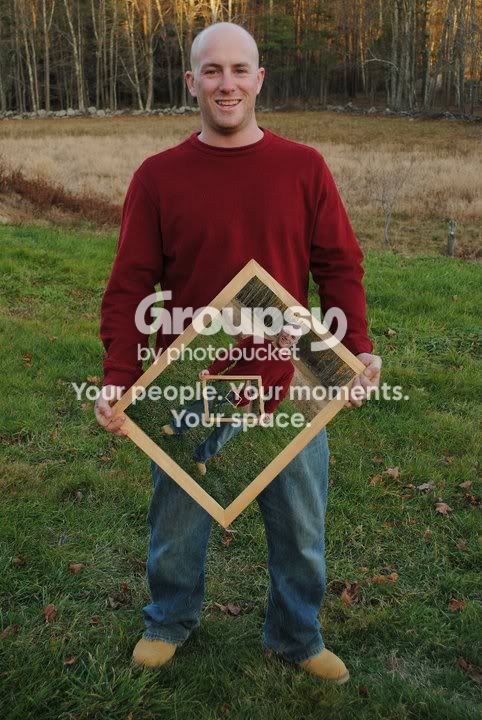
I'm going to give this a try later on and see if I can make this all out.. since i know nothing about 'Masking' lol.. this should be fun.
 
How about a picture in a picture in a picture
HAHA.jpg
 
How about a picture in a picture in a picture
Yeah ! :thumbup:
Now explain how you did this?:lol:

Ideally, I want to take a hand held (large) frame and take different shots of the same scene/person and put a picture inside a picture, etc etc etc.
 
Last edited:
Masking is easy. I mean there are many selection methods that you can use to create the mask, but just the basics of masking are easy. Most adjustment layers will open with a white mask already attached. Because its white it is "Unmasked". Anything you paint in black will be completely masked, anything 50% gray will basically be masked at a lower opacity so it will be "partially masked". Sometimes it is easier to fill the white mask completely with black using the paint bucket tool and start with everything masked. Then you can use white to paint the effect only in certain areas. ( like if you created a surface blur and want to paint a small amount onto a models skin ) You can then lower the opacity to fine tune the adjustments effect once the specific areas are masked as you want. You can also use the gradiant tool to paint a white to gray gradiant on the mask. So for instance, if you only wanted to saturate the sky in a landscape, you could easily use the gradiant tool on the mask essentially like a gradiant filter would be used in lens form on a camera, except you can have the effected part fade into saturation....or contrast....or even fade from color to B&W for a creative effect...

When painting, try to use a soft edged brush.

The key is making sure the little white mask icon on the layer is selected before beginning to paint or else you will actually paint white or black over the image, not a mask. This can be frustrating at first when you keep forgetting to select the mask first and have to remember why its not working. Once you get it though this is the most basic of masking techniques and also the most useful.
 
Masking is easy. I mean there are many selection methods that you can use to create the mask, but just the basics of masking are easy. Most adjustment layers will open with a white mask already attached. Because its white it is "Unmasked". Anything you paint in black will be completely masked, anything 50% gray will basically be masked at a lower opacity so it will be "partially masked". Sometimes it is easier to fill the white mask completely with black using the paint bucket tool and start with everything masked. Then you can use white to paint the effect only in certain areas. ( like if you created a surface blur and want to paint a small amount onto a models skin ) You can then lower the opacity to fine tune the adjustments effect once the specific areas are masked as you want. You can also use the gradiant tool to paint a white to gray gradiant on the mask. So for instance, if you only wanted to saturate the sky in a landscape, you could easily use the gradiant tool on the mask essentially like a gradiant filter would be used in lens form on a camera, except you can have the effected part fade into saturation....or contrast....or even fade from color to B&W for a creative effect...

When painting, try to use a soft edged brush.

The key is making sure the little white mask icon on the layer is selected before beginning to paint or else you will actually paint white or black over the image, not a mask. This can be frustrating at first when you keep forgetting to select the mask first and have to remember why its not working. Once you get it though this is the most basic of masking techniques and also the most useful.

This info is EXTREMELY helpful! Im out of 'Thanks' :lol: but thank you for the feedback! :D I can also youtube some tutorials for masking if i do have issues with it.
 
All I did was selected the picture it self copied then pasted it right back on the original image then selected it again and dragged the sides in changing the size to fit the first frame and pasted another of the original image then selected it then dragged the sides and changed the size to fit the smaller inner frame
 
Hopefully what I just posted make sense
 
All these photos are giving me Ideas for this week end ahhhh lol my next one I think y'all gonna like.
 
BUMP! (:
Ok .. so UPDATE! I found out some more info.. for those who were interested in this as well and wanted to try it.

Possibly called "Droste effect" OR "Recursive Picture"
5417530243_2f97fe15a5_t.jpg


Those links are just to the Google Image results. But it shows a very good idea of what it was i was searching for. Now I can look for tutorials. Yay me. (:

Im still interested in others pics, advice and feedback! Ill be trying this soon.. ill report back :er:
 

Create an account or login to comment

You must be a member in order to leave a comment

Create account

Create an account on our community. It's easy!

Log in

Already have an account? Log in here.

Back
Top Bottom