What's new

Histogram Doesn't Listen

bleeblu

TPF Noob!
Joined
Oct 9, 2011
Messages
159
Reaction score
58
Location
Alabama
Can others edit my Photos
Photos OK to edit
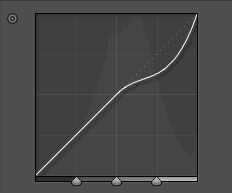
I am using Lightroom 3 on my mac. I want to get the very tip top of the highlights to drop down. I want it to look like this
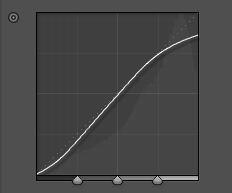
R0OYy.png


But instead I get this

R5iCi.png


I can't simply drag it down because I've tried. Any thoughts?
 
Oh, and the first image is from a preset I downloaded. So it is very much possible.
 
That's not your Histogram It is the Curves adjustment but anyway
In the lower right of the tones curves box there is a small box with a curve line in it, If you hover over it it says "Click to edit poiint curve" once you do that you can pull down the highlight end as you would like to
 
Just one thing: If you pull the top right corner of the curve down as your illustration suggests your photo will have no highlights. Not sure what you're doing -- you may be creating a "special effect" of some kind. However if this is not a "special effect" photo, then that action is most likely very destructive.

Joe
 
That's not your Histogram It is the Curves adjustment but anyway
In the lower right of the tones curves box there is a small box with a curve line in it, If you hover over it it says "Click to edit poiint curve" once you do that you can pull down the highlight end as you would like to

My fault. Curves is what I meant.

I did what you said and it still isn't moving for me. If I drag the highlights slider down it does the same thing.
 
That's not your Histogram It is the Curves adjustment but anyway
In the lower right of the tones curves box there is a small box with a curve line in it, If you hover over it it says "Click to edit poiint curve" once you do that you can pull down the highlight end as you would like to

My fault. Curves is what I meant.

I did what you said and it still isn't moving for me. If I drag the highlights slider down it does the same thing.


Umm, If I may,
Instead of trying to mouse drag, use the slider bars below the curve box.

Push the " lights" to +25
And the shadows to -16

Put the other slider bars to " 0"


Your mileage may vary, depending on what you've done to your image.
 
@LighSpeed That's what I did the second time but to no avail.
 
Reset the image and start over. lol
I do it all the time. This shyt aint easy
 
Use Levels instead. Drop the RGB highlight output down, from 255 to 235.

I am using Lightroom 3 on my mac. I want to get the very tip top of the highlights to drop down. I want it to look like this

R0OYy.png


But instead I get this

R5iCi.png


I can't simply drag it down because I've tried. Any thoughts?
 
I'm sorry. That's not the effect I want either.
 
If you can see all the region sliders:highlights,lights,darks, shadows. you are NOT in the right mode to make the adjustment you want. You must click the box for edit point curve and all the sliders will disppear. you then make the adjustment you want on the actual Curve itself NOT using any slider. As you hover your mouse over the curve line it will turn into up and down arrows. Move it to the right boundry and pul down on the highlight

Once it is down, you can at that point return the the region menu and make other adjuments with your highligh point now set
 
See that little circle thingy in the upper left corner?

R0OYy.png


That is the "Adjust tone curve by dragging in the photo" option. Click on it, then directly on the part of the photo you want to adjust. However, every identical tone in the photo will also be adjusted when you drag your mouse.

To make a more localized adjustment use the Adjustment Brush instead of the Tone Curve.
 

Create an account or login to comment

You must be a member in order to leave a comment

Create account

Create an account on our community. It's easy!

Log in

Already have an account? Log in here.

Back
Top Bottom