What's new

Over Easy

Nominated for "quote of the month"

lol
 
Dang, that was a nice re-edit! :drool:I pretty much just increase sharpness and up the contrast a tiny bit on all my pictures, and I never get those kinds of results!

Here's how I increased the sharpness (this is for Photoshop CS5 in Windows, I haven't figured out a comparable way of doing it in GiMP yet).

Load the photo needing a tad bit of sharpening into photoshop. Make a copy of that layer. On the copy layer, go to Image>Adjustments>Channel Mixer, now look in the bottom left-hand corner of the dialog box that opens and (since I'm lazy) simply click the checkbox next to Monochrome and choose OK (there are a dozen or more other useful ways to do turn the layer black-and-white, but like I mentioned, I'm lazy).

Staying on the layer, go to Filter>Other>HighPass and look for the slider next to the word "Radius". For your photo, I chose 0.5 pixels. You don't want to overdo it here as you will get these nasty halos that don't work well with any photo I've ever seen. Now hit OK.

In the layers area, look for a drop-down box that should, by default, say "Normal" (am I the only one that has a Photoshop that says stuff to me or am I hallucinating?). Find the option "Linear Light" and choose that. You can choose any of them you want, but the ones that read ____ Light are the best IMHO. One note to observe is this will also obviously sharpen any noise present in the photo as you can see happened in my edit of your photo.

Another option would be to isolate the subject needing sharpening by following any number of subject isolation techniques (lasso, blank layer [paint over area needing sharpening on blank layer, select it, choose layer with subject in it and work from that], etc. etc. etc. so-on-and-so-forth).

I'm not good at explaining ideas sometimes and so most of this may be confusing. I apologize. But if you can follow along, you should start getting better results with sharpening photos.

 
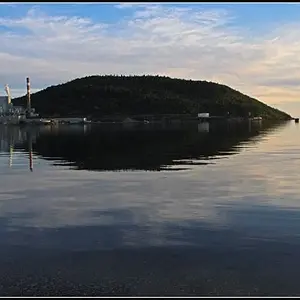
The negative space is not that negative here...for me...
I really liked the yellow against the green....
 
Dang, that was a nice re-edit! :drool:I pretty much just increase sharpness and up the contrast a tiny bit on all my pictures, and I never get those kinds of results!

Here's how I increased the sharpness (this is for Photoshop CS5 in Windows, I haven't figured out a comparable way of doing it in GiMP yet).

Load the photo needing a tad bit of sharpening into photoshop. Make a copy of that layer. On the copy layer, go to Image>Adjustments>Channel Mixer, now look in the bottom left-hand corner of the dialog box that opens and (since I'm lazy) simply click the checkbox next to Monochrome and choose OK (there are a dozen or more other useful ways to do turn the layer black-and-white, but like I mentioned, I'm lazy).

Staying on the layer, go to Filter>Other>HighPass and look for the slider next to the word "Radius". For your photo, I chose 0.5 pixels. You don't want to overdo it here as you will get these nasty halos that don't work well with any photo I've ever seen. Now hit OK.

In the layers area, look for a drop-down box that should, by default, say "Normal" (am I the only one that has a Photoshop that says stuff to me or am I hallucinating?). Find the option "Linear Light" and choose that. You can choose any of them you want, but the ones that read ____ Light are the best IMHO. One note to observe is this will also obviously sharpen any noise present in the photo as you can see happened in my edit of your photo.

Another option would be to isolate the subject needing sharpening by following any number of subject isolation techniques (lasso, blank layer [paint over area needing sharpening on blank layer, select it, choose layer with subject in it and work from that], etc. etc. etc. so-on-and-so-forth).

I'm not good at explaining ideas sometimes and so most of this may be confusing. I apologize. But if you can follow along, you should start getting better results with sharpening photos.
Hmmm, I think all of that can also be done in the GIMP as well, thanks! :)
The negative space is not that negative here...for me...
I really liked the yellow against the green....
Thanks! I guess it's not for everyone, but I like it. :)
 
I know it most likely can, its the High Pass Filter I don't know of a comparable way of doing in GiMP...yet. If you happen to find something about it before I do, let me know. It'd be a big help.
 

Create an account or login to comment

You must be a member in order to leave a comment

Create account

Create an account on our community. It's easy!

Log in

Already have an account? Log in here.

New Topics

Back
Top Bottom