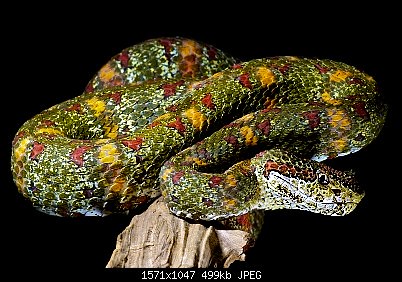
First thing I noticed when editing it is that you are using Adobe RGB (1998) as your color space. So that could explain the differences some are seeing.
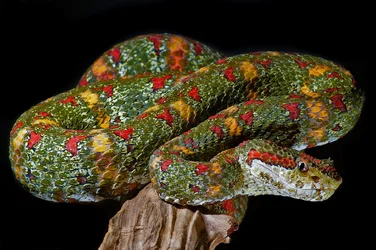
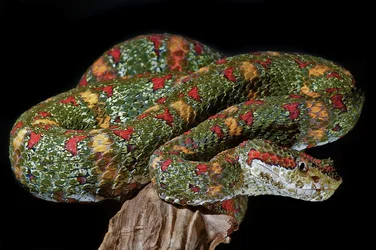
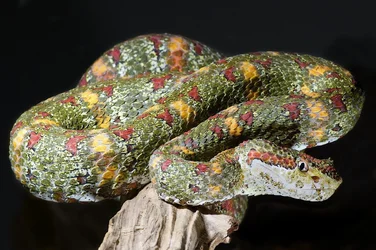
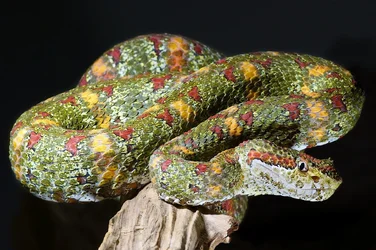
All I did in my edit was kill the highlights...so came out kinda like dude above only less contrasty. You mention wanting not to mess with colors so your customers won't be upset. I could be wrong, but no one has touched the colors, only the highlights/brightness/levels...etc. No one is being "fancy" trying to edit it to make it look cooler.
One thing to note, when adjusting levels and highlights, it can make the colors stand out more even mess with the overall contrast of the image. Use my edits for example. The first one all I did was kill highlights...adjust the tonal width of the highlights. No more. Yet it seems the colors deepened and are rich and vibrant.
Not having ever seen this snake in person..it may not look like that. Knowing that such adjustments can make the colors "appear" differently, I reduced the saturation in my second edit to probly (totally guessing) closer to what the snake looks like.
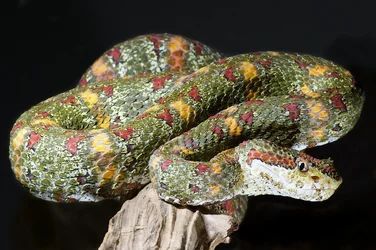
In your original image, your highlights are blown out as stated. Not sure why you felt the need to negate that. All that means is that they (the highlights) are too bright/white to see the detail....especially in the area you were wanting people to notice...the smile.
*edit*
oh....I also burned the background out to make it all black, as soon as I converted the colorspace to normal I saw the things in back he was talking about. rather than adjust levels, which would affect saturation, I just burned them out with the history bruch, therefore not affecting the colors of the snake.
Cool looking snake btw, I like it a lot.








![[No title]](/data/xfmg/thumbnail/38/38263-ad5e4c9e677626ddb5b1e7cdf9ebe40e.jpg?1734172152)