What's new

C&C - Heavily Processed

H4X1MA

No longer a newbie, moving up!
Joined
Aug 10, 2011
Messages
327
Reaction score
59
Location
Vermont
Can others edit my Photos
Photos OK to edit
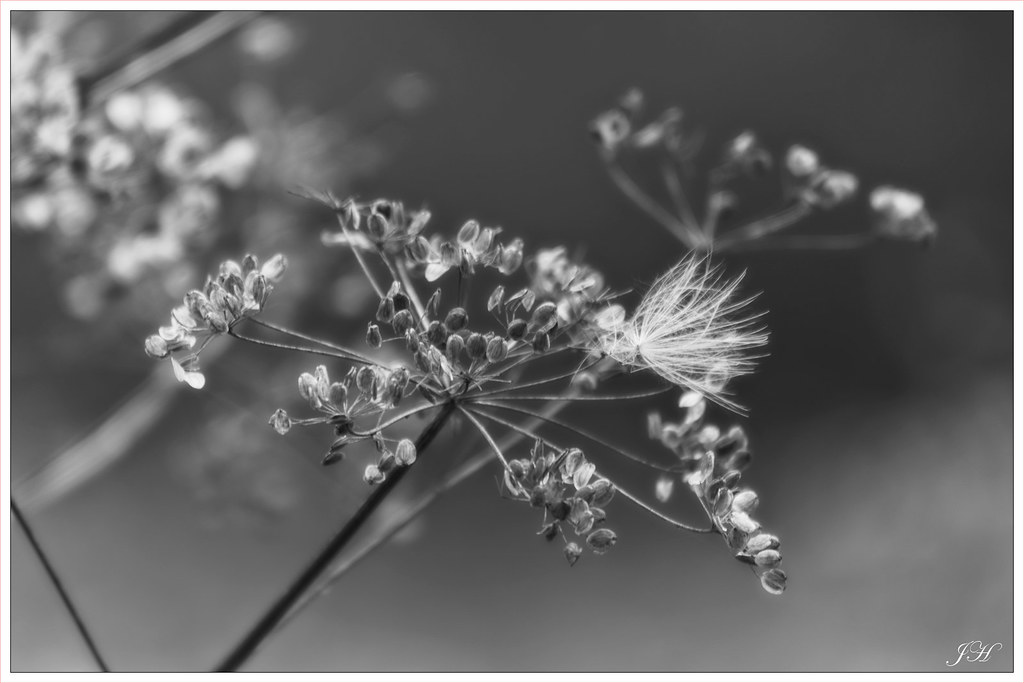
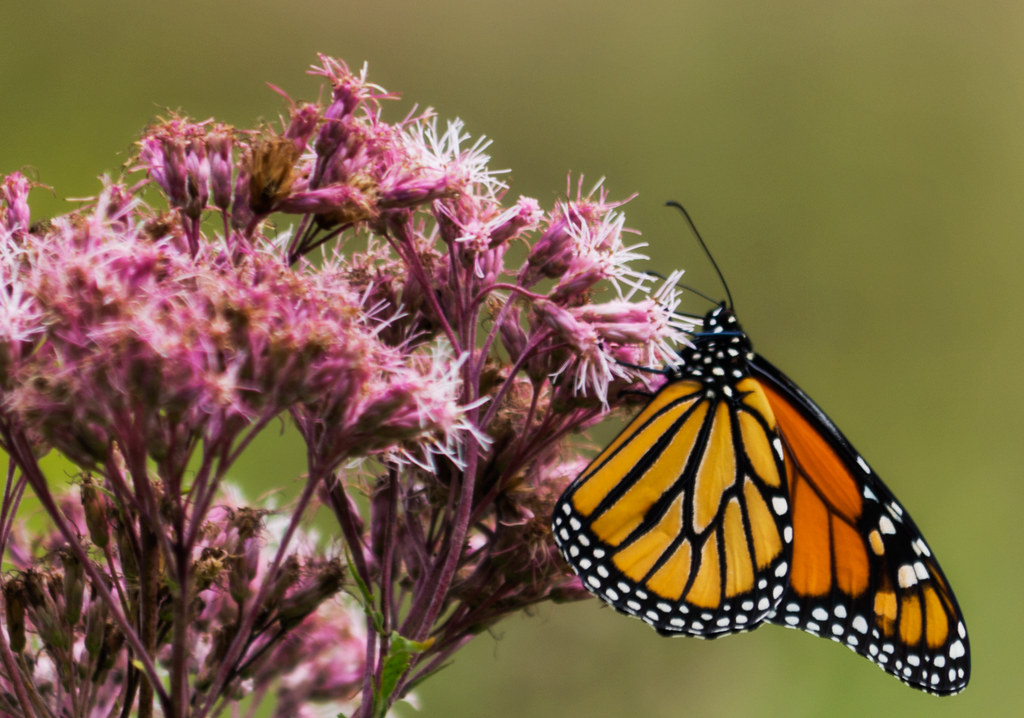
Working on my PS skills. Are these too much?


First one seems out of focus and blurry. I like the second one.
 
If you bring up the curves on the first ones, and hit it with a strong edge sharpener, this one would be really pretty I think.
 
There's a lot of room in the first that doesn't seem to do anything but keep more blurry flowers in the field.

6122274221732d3d8ddcoll.jpg
 
"strong edge sharpener ", never heard of that :S

The first one actually uses a Gausian blur to give that dreamy effect, but it seems like you can't even notice it on the small version. That's what is giving it the out of focus look. I'll take a look into the strong edge sharpening tonight.

As for the crop, I was thinking about cropping it tighter, but was actually dissapointed in myself for not getting the entire "flower" in the frame. I was trying to salvage what I had left.
 
Yeah, the dreamy effect rarely works on things other than portraits. ( before anyone gets all uppity, I didn't say never, I said rarely ). The crop advice and having a sharper shot would be pretty good. The 2nd one is ok, but it would also do better with more subject and less background. Perhaps a slightly different angle as well.
 
Typically when I sharpen I use the Lab color, Lightness, Unsharpen Mask technique that I discovered while doing a Lomo tutorial. It sharpens like crazy, but then you can just set the opacity lower to tone it down a bit. For the pics posted I didn't do that since I wanted the "dreamy", and sharpening them that much would just defeat the purpose.

Here are the jpg originals


I personally prefer the *cropped first image.

As a quick fix I would adjust the curves (a gentle "s" is all) and, yes, sharpen it (or, in this case, stick with the original). If you want the "dreamy effect" of the gaussian, try this instead: duplicate the layer the original is on, desaturate it 100%, and set it to soft light around 20-30 percent (play with it). Add your gaussian to that layer. It's not for all images but it'll give you a gentler gaussian that doesn't just make your entire image look oof, and will boost your saturation/contrast.

 
I personally prefer the *cropped first image.

As a quick fix I would adjust the curves (a gentle "s" is all) and, yes, sharpen it (or, in this case, stick with the original). If you want the "dreamy effect" of the gaussian, try this instead: duplicate the layer the original is on, desaturate it 100%, and set it to soft light around 20-30 percent (play with it). Add your gaussian to that layer. It's not for all images but it'll give you a gentler gaussian that doesn't just make your entire image look oof, and will boost your saturation/contrast.

This one uses your Gaussian method at 56 opacity over the top of a slight s curve cropped. If I did more than 56% it seemed to lose the blur, probably just the way this particular image is. I personally think this is looking better than before even though the "dreamy" is almost lost.

6125611796_849aa5ccb4_b.jpg
 

Create an account or login to comment

You must be a member in order to leave a comment

Create account

Create an account on our community. It's easy!

Log in

Already have an account? Log in here.

New Topics

Back
Top Bottom